Before You Install an AI Extension: A Non-Developer’s Guide to Trust, Permissions, and Red Flags
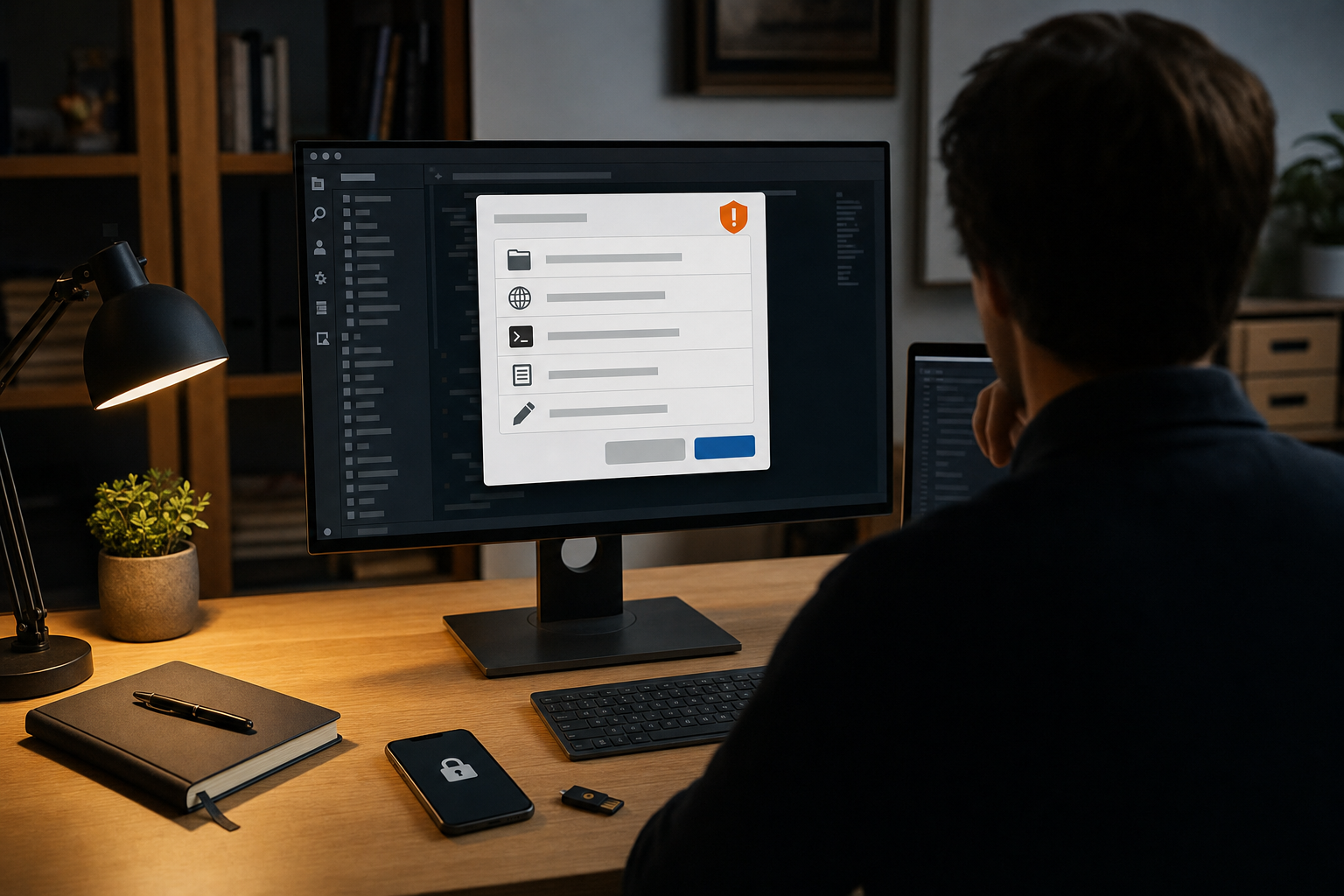
A recent online discussion raised concerns about a VS Code extension presented as an AI coding tool that reportedly contained a backdoor. Public reporting on the case is still limited, so the full facts may change. But the warning sign is already clear: AI extensions are entering everyday software, and many people install them without knowing what those tools can see or do.
That matters because an extension is not just a helpful button. In a code editor, browser, or writing app, it may be able to read files, change content, connect to outside servers, and interact with accounts or tokens. The main tension is simple: AI tools can save time, but that convenience often depends on broad access that users do not fully understand.
Treat AI extensions like access requests, not harmless add-ons
My view is straightforward. Non-developers do not need to become security experts, but they should treat AI extensions as software with real privileges, not as decoration for an app. If a tool wants access to your work, your documents, or your accounts, it deserves the same caution you would use with any new service handling sensitive material.
This is especially true for AI tools because their value comes from context. A weak calculator can still do its job. A weak AI assistant often asks for more data so it can give better answers. That creates a real trade-off. The more helpful the tool becomes, the more visibility it may need into your files, your drafts, your messages, or your codebase.
For many users, the risk is not theoretical. A student might expose private notes or application essays. A creator might hand over client drafts, interview transcripts, or unpublished content. A professional might give an extension access to contracts, strategy documents, internal comments, or customer information. In a coding environment, the stakes can be higher still: source code, configuration files, and API keys may all sit nearby.
What “permissions” mean in plain English
Permission screens are often written for technical users, but the underlying ideas are simple.
- Read access: the tool can view files, page content, or project data.
- Write access: the tool can change files, insert text, or modify settings.
- Network access: the tool can send data to outside servers and receive data back.
- Account access: the tool may connect to services like Google, GitHub, Slack, or cloud storage.
- Command or execution access: in some environments, the tool may trigger actions on your machine or within the app.
You do not need to memorize technical terms. Just ask one practical question: does the access match the job? A writing helper may need your current document. It should not need unrelated account access. A code assistant may need your current project. That does not automatically justify broad access to every folder, every secret, or every external service.
The first checks anyone can do
You can filter out a lot of risk with a short, boring checklist. Boring is good here.
- Check the exact publisher name. Do not trust a familiar product name alone. Copycat listings often rely on brand confusion. Look for an official company page, product documentation, or a clear link from the vendor’s website.
- Look beyond the marketplace title. Search results and recommendation threads can surface unofficial tools before official ones. A famous name in the title is not proof of legitimacy.
- Read the description with suspicion. Vague promises like “works everywhere” or “secure by design” are not enough. A credible listing explains what the tool does, how it handles data, and where support comes from.
- Find the privacy policy. If there is no privacy policy, or it is generic, broken, or copied, that is a serious warning. You want to know what data leaves your device, how long it is stored, and whether it may be used for model training.
- Check whether the permissions fit the use case. If the extension needs access that seems unrelated to its purpose, stop and ask why.
- Look for a real support trail. A working website, documentation, company contact, and update notes are better trust signals than star ratings alone.
- See how established it is. A very new tool is not automatically unsafe, but it deserves more caution, especially if it asks for deep access on day one.
- Test in a low-risk environment first. If you want to try a new tool, use it on a non-sensitive file, a personal sandbox, or a separate profile before exposing work material.
One useful rule for beginners is this: if you cannot explain to another person why a tool needs the access it requests, you probably should not approve it yet.
Red flags that should stop you
Some warning signs are strong enough to justify walking away immediately.
- A near-copy of a trusted brand name. One changed letter, a different publisher, or a lookalike logo is enough reason to pause.
- Pressure tactics. Messages that urge you to install quickly, bypass warnings, or “unlock full AI power” without clear explanation are a bad sign.
- Requests for secrets in the wrong place. Be careful with tools that ask you to paste tokens, passwords, or private keys into a chat box or settings field without clear documentation.
- No clear owner. If you cannot tell who made the tool, where they are based, or how to contact them, trust should be low.
- Broken links and thin documentation. A missing website, dead support page, or copied text often signals a rushed or deceptive listing.
- Permissions that exceed the stated purpose. This is one of the clearest practical tests available to non-technical users.
- Sideloading from random links. If someone tells you to install a file directly from a chat message or file-sharing service instead of an official store or vendor page, do not do it casually.
- Reviews that look fake. A flood of short, generic praise can be manufactured. Detailed, specific reviews are more useful.
None of these signals alone proves malicious intent. But taken together, they can tell you when convenience is outrunning judgment.
What trust signals people overrate
There are also a few signals that sound reassuring but are weaker than they appear.
- High download numbers. Popular tools can still be unsafe, and bad listings can spread quickly if they mimic a known brand.
- Positive social media posts. Recommendation threads are often based on convenience, not security review.
- “Open source” as a shortcut to safety. Public code can help, but only if the uploaded extension actually matches that code and someone is reviewing it. Most users are not checking that.
- Marketplace presence alone. Official stores reduce risk, but they do not remove it. Screening is not the same as a full audit.
This is an important point in the current AI market. Many people assume that if a tool appears in a respected editor or browser marketplace, someone else has already done the hard checking. Sometimes that is partly true. It is never fully true.
The fair counterpoint: caution can become friction
There is a reasonable counterargument here. If users are told to distrust every new extension, smaller developers will struggle, useful products will be ignored, and people will lose tools that genuinely improve their work. That is a real concern.
It is also true that some permissions sound broader than they feel in practice. In complex apps, a tool may need access to your current workspace just to function. A strict, fearful attitude can easily turn into paralysis.
But that does not weaken the main case for caution. It strengthens the case for proportionate caution. The goal is not zero risk. The goal is to match trust to evidence. If a tool comes from a known source, explains its data practices, asks for relevant access, and can be tested safely, many users can make a reasonable decision to proceed. If those conditions are missing, hesitation is not paranoia. It is basic digital hygiene.
A practical checklist before you click “Install”
- Who published this? Find the real company or developer.
- Is this the exact official tool? Check the vendor’s own website if possible.
- What can it access? Files, pages, accounts, or external services?
- Why does it need that access? The answer should be easy to state.
- Where does my data go? Local only, or sent to a server?
- How long is data stored? Temporary processing and long-term retention are not the same thing.
- Can I use it safely on low-risk material first? If not, think twice.
- Would I be comfortable explaining this installation to my employer, client, or teacher? If the answer is no, stop.
If you already installed something suspicious
Do not panic, but do act.
- Disable or remove the extension.
- Revoke connected app access from linked accounts, if any.
- Change relevant passwords or tokens, especially if the tool could access them.
- Check for unusual activity in email, cloud storage, code repositories, and payment accounts.
- Tell your workplace IT or security team if the device or account is work-related.
- Reinstall only from an official, verified source after checking the details more carefully.
Speed matters here. If a tool had unnecessary access, the safest assumption is that your accounts and files deserve a quick review.
The bottom line
The reported VS Code case may turn out to be narrow, or it may point to a larger pattern. Either way, the lesson is the same: AI extensions should not get a free pass just because they promise productivity.
For non-developers, the standard does not need to be technical mastery. It only needs to be clear, limited, explainable access. If an AI extension asks for more trust than you can justify in one sentence, that is your answer. Do not install it yet.